# How to make AI UGC ads with your real app on screen
Build a 13-second AI UGC ad: an AI actor reacts, then their hands use your real product on a phone. Copyable prompts, a compositing script and an ffmpeg cut.
AI video models often garble app screens. So here the AI makes the person, and you put your real screen recording on their phone.
You'll build a 13-second vertical ad: 3 seconds of someone reacting with your hook on top, then 10 seconds of their hands using your product.
**You need:** a 10-second vertical screen recording, an image model (we use Higgsfield Soul 2), a video model (we use Seedance 2.5 on kie.ai), and `uv`, `ffmpeg`, `jq` and `curl`.
## 1. Write the hook
The hook is the text on screen in the first 3 seconds. List only facts your screen recording shows, then paste this prompt into a fresh chat. Our example product is our own [tools page](/tools).
```text title="Prompt: 12 hooks"
You write the on-screen hook for a short UGC-style ad. The ad is: 3 seconds of a person reacting to their phone, then 10 seconds of their hands using the product on that phone.
Product facts (only these are true; do not add any others):
- Product: EntireFeed Tools, a page at entirefeed.com/tools
- 54 tools for video, images and audio
- 10 of them are free and run right on the page in your browser
- Examples of free tools: Video Text Overlay (put text on a video for a set start and end time), Image Editor (crop, rotate, brighten, label an image; nothing is uploaded), Extract Video Frame (grab a PNG still from any point in a video)
- Viewer: someone who makes short-form videos for TikTok or Reels and edits them on a phone or laptop
Write 12 hooks. Rules:
- It reads like a person typing over their own video, not a brand. lowercase is fine. "bruh", "pov:" or a number are fine openers.
- One thought per hook. No comma followed by a second thought.
- It is about the viewer or someone they know, not the product. Do not name the product.
- The person on screen is a fictional actor, not a customer. Do not write first-person product experience: no "i use", "i found", "my editor", "this saved me", no ownership, recommendation or results.
- Leave a gap the video closes: the viewer should want to see what is on the phone.
- 12 words or fewer.
- Never claim something the facts do not support: no prices, no "every tool is free", no time saved, no comparison with a named competitor, no years of use.
- Never use: game changer, unlock, seamless, elevate, say goodbye to, ultimate, hashtags, link in bio, em dashes.
Return only the 12 hooks, one per line. Then one line starting "Best:" with the hook you would test first and the fact it depends on.
```
Actual output from a fresh chat:
```text title="Output"
pov: your editing tab has 54 video image and audio tools
your next reel has 10 free browser tools behind this tap
bruh your friend can put timed text on a video
your video can show text only between two exact moments
the frame you need is hiding at one exact timestamp
your laptop can grab a png from any video timestamp
pov: your image gets cropped and labeled without being uploaded
your phone can crop rotate brighten and label this image
which of these 54 tools does your next reel need
your next tiktok could start from one frame in this video
your friend can edit this image without uploading anything
10 free tools can run right inside your browser
Best: pov: your image gets cropped and labeled without being uploaded (fact: the Image Editor crops and labels without uploads)
```
Pick the hook your demo proves in its first 2 seconds. The model picked the Image Editor hook, but our demo never opens the Image Editor. We took the last hook instead, because the FREE 10 filter is on screen from the first frame. Save it to `hook.txt` with a line break where you want the text to wrap:
```text title="hook.txt"
10 free tools can run
right inside your browser
```
## 2. Make two stills of the same person
You need two photos of one actor in one room: a selfie for the reaction, and a back-camera shot of their hand holding a phone with a solid green screen. Generate both with the same clothing, skin, nails and lighting.
```text title="Prompt: selfie still"
Vertical 9:16 portrait-orientation phone photo, upright. One fictional attractive adult man, age 24 to 28, East Asian appearance, light skin, short black textured hair, clean shaven. A confident friendly natural presence, wearing a plain heather-grey hoodie, fully clothed. Casual front-facing selfie portrait from chest up, sitting in a black desk chair in his bedroom in the evening, behind him a made bed with a navy duvet and a closed white door, lit by a warm desk lamp in front of him with a faint purple LED glow. Unretouched realistic skin with pores, slight facial asymmetry, candid mobile-photo softness and compression, normal practical room light. Single upright full-frame photo, no studio lighting, no beauty filter, no watermark, text, logos, borders, collage or visible recording device. Not a real person or celebrity.
```
```text title="Prompt: hand and green phone still"
Vertical 9:16 portrait-orientation phone photo, upright. Rear-camera point-of-view photo of a young man's right hand holding a black iPhone upright in portrait above his desk in the evening, a black keyboard and a large dark desk mat below, the base of a monitor at the top edge, a warm desk lamp and a faint purple LED strip glow. Light skin, short natural nails, no rings, the cuff of a heather-grey hoodie on his wrist. His thumb hovers near the lower part of the screen. The phone's entire display is lit as one flat solid pure chroma-key green (#00FF00) from edge to edge, uniform, with no icons, no text, no interface, no reflections. Nobody else in the photo, no faces, no feet. Realistic skin texture, candid amateur mobile photo, slight softness and compression, no watermark, no text, no logos.
```
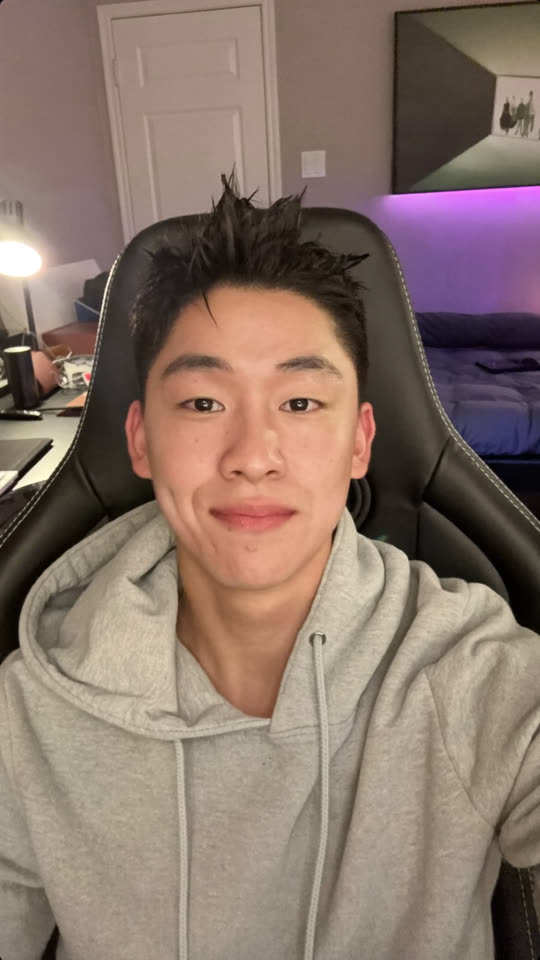
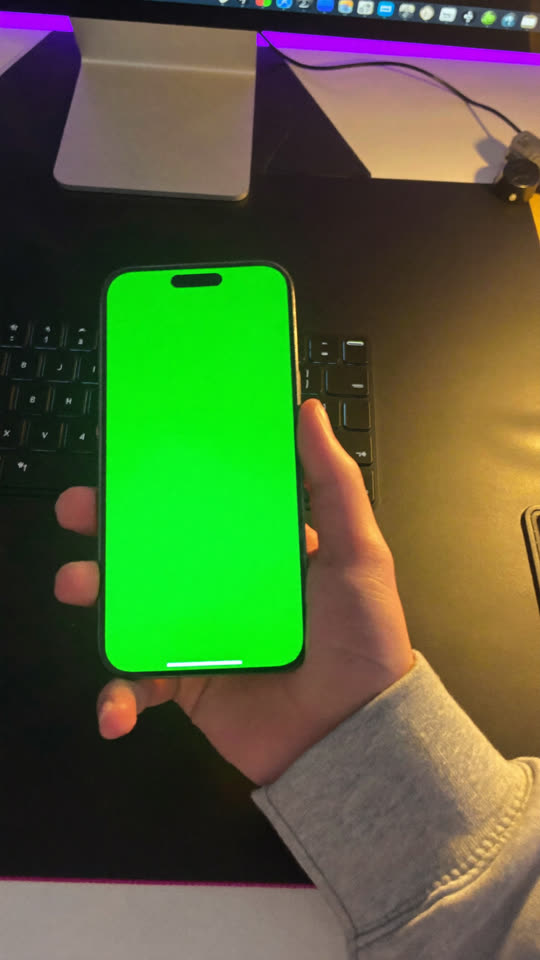
These are the actual Soul 2 outputs of the two prompts above. Three details mattered in our runs:
- Start every prompt with `Vertical 9:16 portrait-orientation phone photo, upright`. Without it, Soul 2 returned a sideways frame for us.
- Repeat the sleeve, skin, nails and room in both prompts. The cut only works if it reads as one person in one room.
- Ask for one flat `#00FF00` screen with no icons, clock or reflections. Anything drawn on the screen has to be removed later.
## 3. Turn the stills into video
Upload both stills somewhere that gives a public HTTPS link (S3, R2, Vercel Blob or similar). Then save each request below as a file and send it with `kie.sh`.
The hands clip animates the hand still for 10 seconds. The prompt keeps the screen green the whole time and gives the thumb something to do.
```json title="hands-request.json"
{
"model": "bytedance/seedance-2-5",
"input": {
"prompt": "Handheld first-person phone video at a desk in the evening. His hand holds the phone steadily above the keyboard and desk mat; his thumb taps the lower middle of the screen every second or two, with small pauses, as if playing a game. The camera drifts very slightly, as if filmed with his other hand. The phone screen stays one flat, uniform, solid bright chroma-key green for the entire video: no content, no icons, no clock, no text, no reflections, no change in colour. Keep the phone's shape, the hand, the room and the warm lamp light consistent. No other people, no faces, no text or captions. Realistic amateur phone video, natural motion blur, no slow motion.",
"first_frame_url": "https://your-storage/hands-still.png",
"duration": 10,
"aspect_ratio": "adaptive",
"resolution": "720p",
"generate_audio": false
}
}
```
That is the real output of this request. For the reaction, film yourself first: 4 seconds on your selfie camera, looking down at the phone and then up, surprised. A real performance gives you human timing, and the model only changes who is on screen. Upload the take too. This prompt is adapted from our production one and hasn't been run as written.
```json title="reaction-request.json"
{
"model": "bytedance/seedance-2-5",
"input": {
"prompt": "Replace the person in @video1 completely with the man in @image1: his face, short black textured hair and plain heather-grey hoodie. Use @image1 only for his identity, hair and clothing, NOT for its pose. Keep the exact movement and timing from @video1: he looks down at his phone, then his eyebrows go up and he leans toward the camera, surprised. He is sitting in a black desk chair in his bedroom in the evening: behind him a made bed with a navy duvet and a closed white door, a warm desk lamp in front of him and a faint purple LED glow. No watermark, logo, text, captions or recording device. Natural realistic upright selfie mobile video, handheld at arm's length.",
"reference_video_urls": ["https://your-storage/your-reaction-take.mp4"],
"reference_image_urls": ["https://your-storage/selfie-still.png"],
"duration": -1,
"aspect_ratio": "adaptive",
"resolution": "1080p",
"generate_audio": false
}
}
```
`kie.sh` submits a request, checks every 15 seconds until the job finishes, and downloads the video. It uses the same endpoints our production pipeline calls.
```bash title="kie.sh"
#!/usr/bin/env bash
# usage: KIE_API_KEY=your-key bash kie.sh request.json out.mp4
# Submits one kie.ai job, waits for it, downloads the video.
set -euo pipefail
API=https://api.kie.ai/api/v1/jobs
AUTH="Authorization: Bearer $KIE_API_KEY"
CREATED=$(curl -s -X POST "$API/createTask" -H "$AUTH" -H "Content-Type: application/json" -d @"$1")
TASK=$(echo "$CREATED" | jq -r '.data.taskId // empty')
[ -n "$TASK" ] || { echo "Not created: $CREATED"; exit 1; }
echo "task $TASK"
while true; do
INFO=$(curl -s "$API/recordInfo?taskId=$TASK" -H "$AUTH")
STATE=$(echo "$INFO" | jq -r '.data.state // "pending"')
if [ "$STATE" = success ]; then break; fi
if [ "$STATE" = fail ]; then echo "Failed: $(echo "$INFO" | jq -r '.data.failMsg')"; exit 1; fi
sleep 15
done
curl -sL -o "$2" "$(echo "$INFO" | jq -r '.data.resultJson | fromjson | .resultUrls[0]')"
echo "saved $2 ($(echo "$INFO" | jq -r '.data.creditsConsumed // "?"') credits)"
```
```bash title="Terminal"
export KIE_API_KEY=your-key
bash kie.sh hands-request.json hands-green.mp4
bash kie.sh reaction-request.json reaction.mp4
```
`duration: -1` lets the model follow your take, but the returned clip can come back a little shorter. Check that `reaction.mp4` is at least 3 seconds long. In our October 2026 run, the hands job used 630 credits and a reaction job used 665. At that run's rate of about $0.005 per credit, that is roughly $3.15 and $3.33. Check current pricing before you submit.
## 4. Put your real screen in the phone
`phone_screen.py` finds the green screen in every frame and warps your recording onto its four corners. Your thumb stays on top, and the script removes the green glow from the skin next to the phone.
Show phone_screen.py
```python title="phone_screen.py"
"""Put a real screen recording inside the green phone screen of an AI clip.
usage: phone_screen.py HANDS.mp4 SCREEN.mp4 OUT.mp4 [--start SECONDS]
"""
ap = argparse.ArgumentParser()
ap.add_argument("hands"); ap.add_argument("screen"); ap.add_argument("out")
ap.add_argument("--start", type=float, default=0.0, help="where to start in SCREEN")
a = ap.parse_args()
def frames(path):
cap = cv2.VideoCapture(path); fps = cap.get(cv2.CAP_PROP_FPS); out = []
while (ok := cap.read())[0]:
out.append(ok[1])
return out, fps
hands, fps = frames(a.hands)
screen, screen_fps = frames(a.screen)
H, W = hands[0].shape[:2]
def green_dominance(f): # high on the green screen, near zero on skin
f = f.astype(np.float32)
return f[..., 1] - np.maximum(f[..., 0], f[..., 2])
def screen_corners(f): # 4 corners of the largest green area
mask = (green_dominance(f) > 60).astype(np.uint8)
n, labels, stats, _ = cv2.connectedComponentsWithStats(mask)
if n < 2: return None
biggest = 1 + int(np.argmax(stats[1:, cv2.CC_STAT_AREA]))
hull = cv2.convexHull(cv2.findNonZero((labels == biggest).astype(np.uint8)))
box = cv2.boxPoints(cv2.minAreaRect(hull)) # fallback if no clean 4-corner fit
for eps in (0.01, 0.02, 0.04, 0.06): # 4 real corners, so perspective is kept
poly = cv2.approxPolyDP(hull, eps * cv2.arcLength(hull, True), True)
if len(poly) == 4:
box = poly.reshape(4, 2).astype(np.float32); break
box = box[np.argsort(np.arctan2(box[:, 1] - box[:, 1].mean(), box[:, 0] - box[:, 0].mean()))]
return np.roll(box, -int(np.argmin(box.sum(axis=1))), axis=0).astype(np.float32)
corners = [screen_corners(f) for f in hands]
found = [c for c in corners if c is not None]
if not found:
raise SystemExit("No green screen found. Regenerate the hands clip with a solid green display.")
corners = [c if c is not None else found[0] for c in corners]
smooth = [np.median(corners[max(0, i - 2): i + 3], axis=0) for i in range(len(corners))]
tmp = a.out + ".tmp.mp4"
writer = cv2.VideoWriter(tmp, cv2.VideoWriter_fourcc(*"mp4v"), fps, (W, H))
for i, f in enumerate(hands):
s = screen[min(int((a.start + i / fps) * screen_fps), len(screen) - 1)]
sh, sw = s.shape[:2]
q = smooth[i]; q = (q.mean(axis=0) + (q - q.mean(axis=0)) * 1.02).astype(np.float32) # cover the rounded edge
m = cv2.getPerspectiveTransform(np.float32([[0, 0], [sw, 0], [sw, sh], [0, sh]]), q)
warped = cv2.warpPerspective(s, m, (W, H), borderMode=cv2.BORDER_REPLICATE).astype(np.float32)
warped = cv2.GaussianBlur((warped - 128) * 0.92 + 134, (0, 0), 0.7) # look filmed, not pasted
alpha = np.clip((green_dominance(f) - 28) / 67, 0, 1)
alpha = cv2.GaussianBlur(alpha, (0, 0), 1.1)[..., None] # soft edge around the thumb
g = f.astype(np.float32)
b_, g_, r_ = g[..., 0], g[..., 1], g[..., 2]
screen_area = (alpha[..., 0] > 0.5).astype(np.uint8)
near = cv2.dilate(screen_area, np.ones((41, 41), np.uint8)) > 0
fade = cv2.GaussianBlur(cv2.dilate(screen_area, np.ones((61, 61), np.uint8)).astype(np.float32), (0, 0), 30)
g_ = g_ - fade * np.clip(g_ - np.maximum(0.97 * r_, b_) - 2, 0, None) # screen-light spill, faded out
hue = cv2.cvtColor(f, cv2.COLOR_BGR2HSV)[..., 0]
rim = near & (hue >= 20) & (hue <= 75) & (alpha[..., 0] < 0.98) # yellow-green edge of the thumb
g[..., 1] = np.where(rim, np.minimum(g_, 0.68 * r_ + 0.12 * b_), g_)
writer.write(np.clip(warped * alpha + g * (1 - alpha), 0, 255).astype(np.uint8))
writer.release()
subprocess.run(["ffmpeg", "-v", "error", "-y", "-i", tmp, "-c:v", "libx264", "-crf", "16",
"-pix_fmt", "yuv420p", a.out], check=True)
os.remove(tmp)
print(f"{len(hands)} frames, screen found in {len(found)}")
```
```bash title="Terminal"
uv run --with opencv-python-headless --with numpy python phone_screen.py hands-green.mp4 screen-recording.mp4 body.mp4 --start 1.2
```
`uv run --with` makes a throwaway Python environment, so you don't need a Python project. `--start` skips the first seconds of your recording, which helps if the page is still loading. If the script says it found no green screen, regenerate the hands clip: the display has to stay a large, solid green area in every frame.
Here is the same frame before and after, with our tools page on the phone:
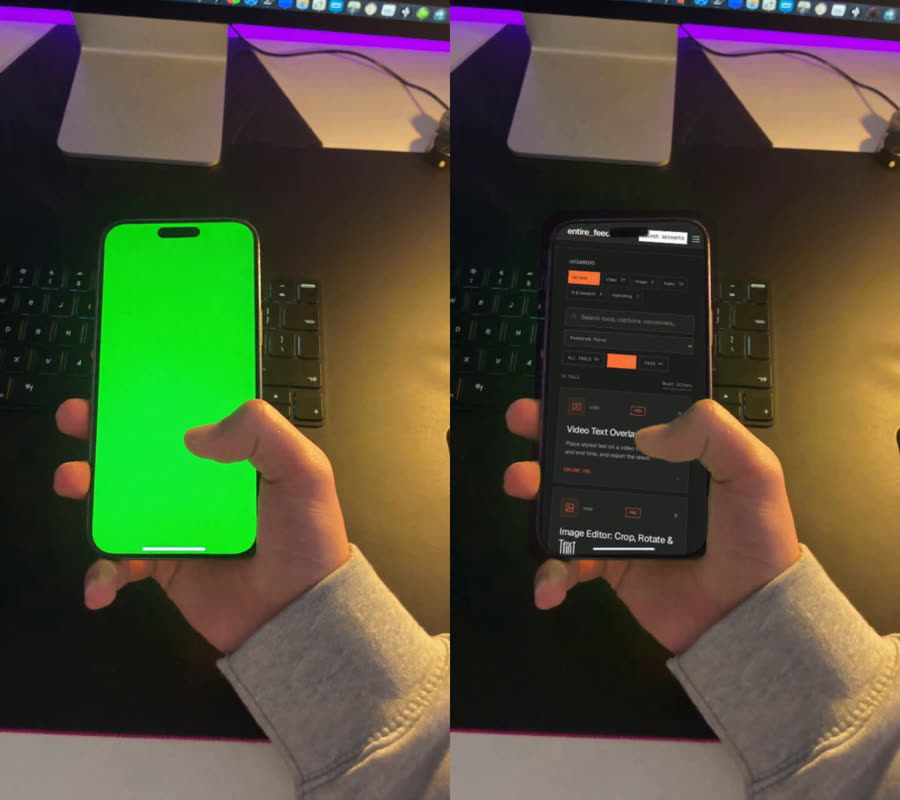 That is the actual output. The phone UI comes from the real screen recording. The script warps, softens and colour-matches those recorded pixels, and no model redraws the interface.
## 5. Cut the ad together
`assemble.sh` puts 3 seconds of reaction with the hook on top, holds the last frame for 0.2 seconds, then cuts to the phone. The short freeze reads like the camera flipping from front to back. If you want an animated flip instead, use the paid [Camera Switch Transition](/tools/camera-switch-transition) inside EntireFeed.
```bash title="assemble.sh"
#!/usr/bin/env bash
# usage: assemble.sh REACTION.mp4 BODY.mp4 hook.txt OUT.mp4 [MUSIC.mp3]
# hook.txt holds the on-screen hook; put a line break where you want one.
# MUSIC is a track you are licensed to use. Without it the ad is silent.
set -euo pipefail
REACTION=$1 BODY=$2 HOOK=$3 OUT=$4 MUSIC=${5:-}
# Any bold .ttf works. Set FONT=/path/to/font.ttf to choose your own.
for f in "/System/Library/Fonts/Supplemental/Arial Bold.ttf" /usr/share/fonts/truetype/dejavu/DejaVuSans-Bold.ttf; do
if [ -f "$f" ]; then FONT=${FONT:-$f}; fi
done
: "${FONT:?Set FONT to a bold .ttf file}"
LENGTH=$(ffprobe -v error -show_entries format=duration -of csv=p=0 "$BODY" | awk '{print $1 + 3.2}')
if [ -n "$MUSIC" ]; then
AUDIO_IN=(-stream_loop -1 -i "$MUSIC")
FADE=$(awk -v l="$LENGTH" 'BEGIN {print l - 0.8}')
AUDIO="[2:a]atrim=duration=$LENGTH,afade=t=out:st=$FADE:d=0.8,loudnorm=I=-14:TP=-1.5:LRA=11[a]" # -14 LUFS
else
AUDIO_IN=(-f lavfi -i anullsrc=r=48000:cl=stereo)
AUDIO="[2:a]atrim=duration=$LENGTH[a]"
fi
FIT="scale=1080:1920:force_original_aspect_ratio=increase,crop=1080:1920,fps=30,setsar=1"
ffmpeg -y -i "$REACTION" -i "$BODY" "${AUDIO_IN[@]}" -filter_complex "
[0:v]trim=0:3,setpts=PTS-STARTPTS,$FIT,
drawtext=fontfile='$FONT':textfile='$HOOK':text_align=center:fontsize=56:fontcolor=white:
borderw=6:bordercolor=black:line_spacing=14:x=(w-text_w)/2:y=h*0.13,
tpad=stop_mode=clone:stop_duration=0.2[reaction];
[1:v]setpts=PTS-STARTPTS,$FIT[body];
[reaction][body]concat=n=2:v=1:a=0[v];
$AUDIO" \
-map "[v]" -map "[a]" -c:v libx264 -crf 18 -pix_fmt yuv420p -c:a aac -ar 48000 -movflags +faststart "$OUT"
```
```bash title="Terminal"
bash assemble.sh reaction.mp4 body.mp4 hook.txt ad.mp4 music.mp3
```
You get a 13.2-second, 1080×1920, 30 fps MP4. The music track loops to fill the ad, fades out over the last 0.8 seconds and is normalised to -14 LUFS. Use a track you are licensed to use. Without it, the ad is silent, and [TikTok requires video ads to contain audio](https://ads.tiktok.com/resources/help/article/tiktok-ads-policy-ad-format-and-functionality). The script finds a bold font on macOS and Linux; anywhere else, set `FONT=/path/to/bold.ttf` first. This example puts the hook 13% from the top. Preview the export in every placement you buy and move it if the platform's buttons, caption or crop cover it.
## Before you publish
```text title="Checklist"
[ ] Every word of the hook is true, and the demo shows it.
[ ] The actor is synthetic, and the ad does not say or imply that they bought, used, recommend or got results from the product.
[ ] Scrub every composited frame at full size: the UI stays inside the phone, the thumb edge is clean, no green is left, all text is readable.
[ ] No AI-generated content is left inside the phone screen: no stray icons, text, clocks or reflections.
[ ] Hands match between the two shots: skin, nails, sleeve.
[ ] The platform's AI disclosure is on. On TikTok, realistic AI video needs the AI-generated content setting. On Meta, check the current AI info and Ads Manager rules.
[ ] The platform's ad or commercial-content disclosure is on. On TikTok, that is Your brand or Branded content.
[ ] The ad has clear audio you are licensed to use. Don't upload the silent version as a TikTok ad.
[ ] You have the rights to every performance, recording, reference image, font and music track.
[ ] Variants change only the hook. Same reaction, same demo, same length.
```
What we tested on this page
The two still prompts and the hands prompt are exact prompts from an October 2026 production run, shown with their real outputs. The hook prompt was run in a fresh chat, and its output is shown verbatim. Both scripts were run: the phone composite is real output, and the final cut was tested, with and without music, using a still image in place of the reaction clip. We have not yet shown a finished ad with a generated reaction. The reaction prompt is adapted from that run's recast prompt and has not been run as written.
Why the screen is not generated
Video models are good at people and rooms and unreliable at interface text. In our client work we check generated product footage frame by frame against the original. When we let a model touch a product video at all, we limit it to the room and the lighting, never the UI. Compositing a real recording onto a green screen avoids that risk. It also means you can swap in a new screen recording later without paying for a new clip.
The rules on synthetic actors are about truthfulness, not just labels. The US FTC's [guidance on reviews and testimonials](https://www.ftc.gov/business-guidance/resources/consumer-reviews-testimonials-rule-questions-answers) says AI avatars are not banned outright, but a fake testimonial is still deceptive. An AI label tells viewers how the video was made. It doesn't make an invented customer experience true. See also TikTok's rules on [AI-generated content](https://support.tiktok.com/en/using-tiktok/creating-videos/ai-generated-content) and on [promoting a brand](https://support.tiktok.com/en/business-and-creator/creator-and-business-accounts/promoting-a-brand-product-or-service/).